


Before you do this, make sure you have lifestyle images on your store’s product listings, or uploaded on Socioh.
- On the catalog preview screen, find the “Product Image” section on the bottom left of the screen.
Note: Some screens may need you to scroll down on the left panel to view this section.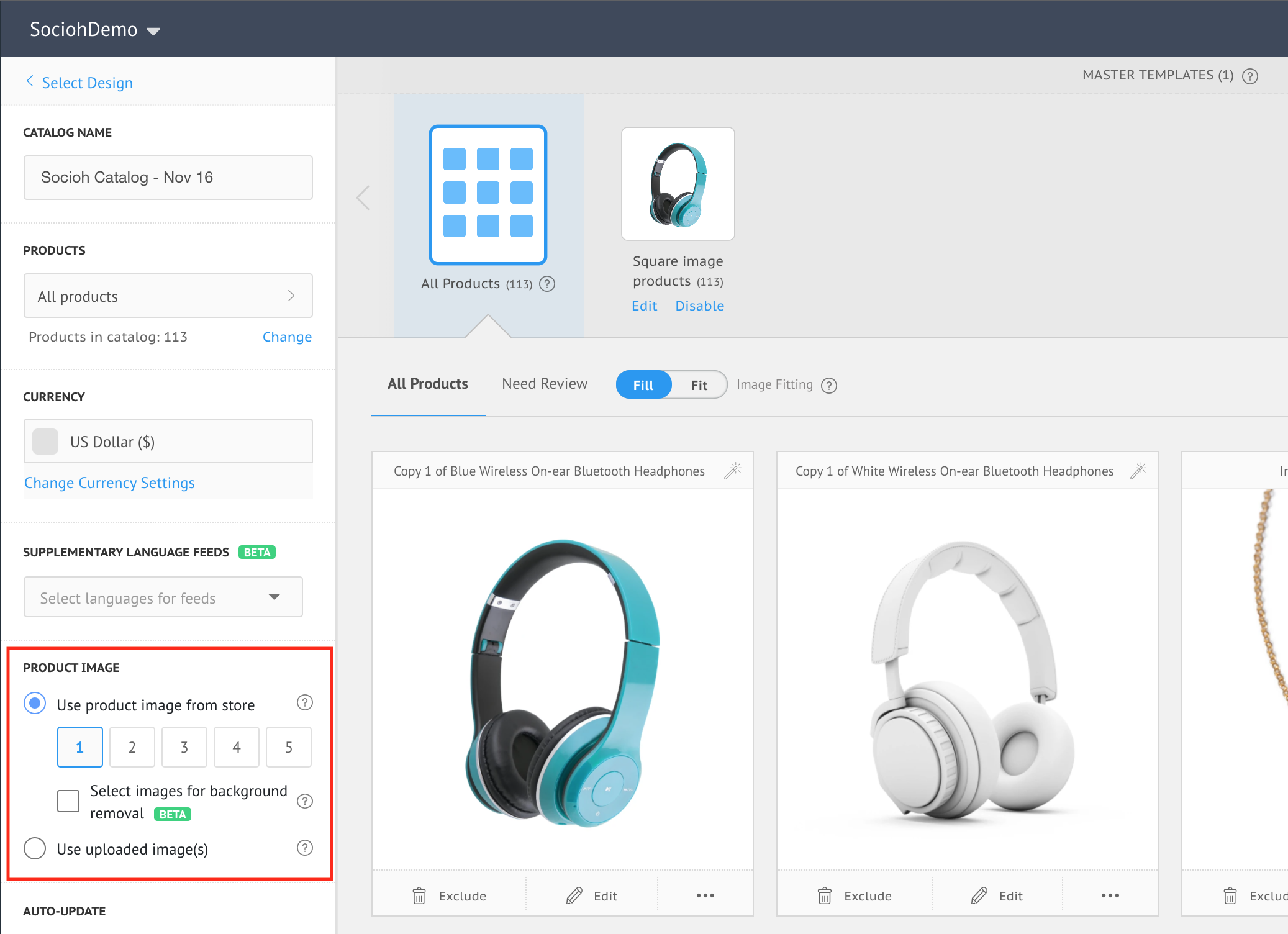
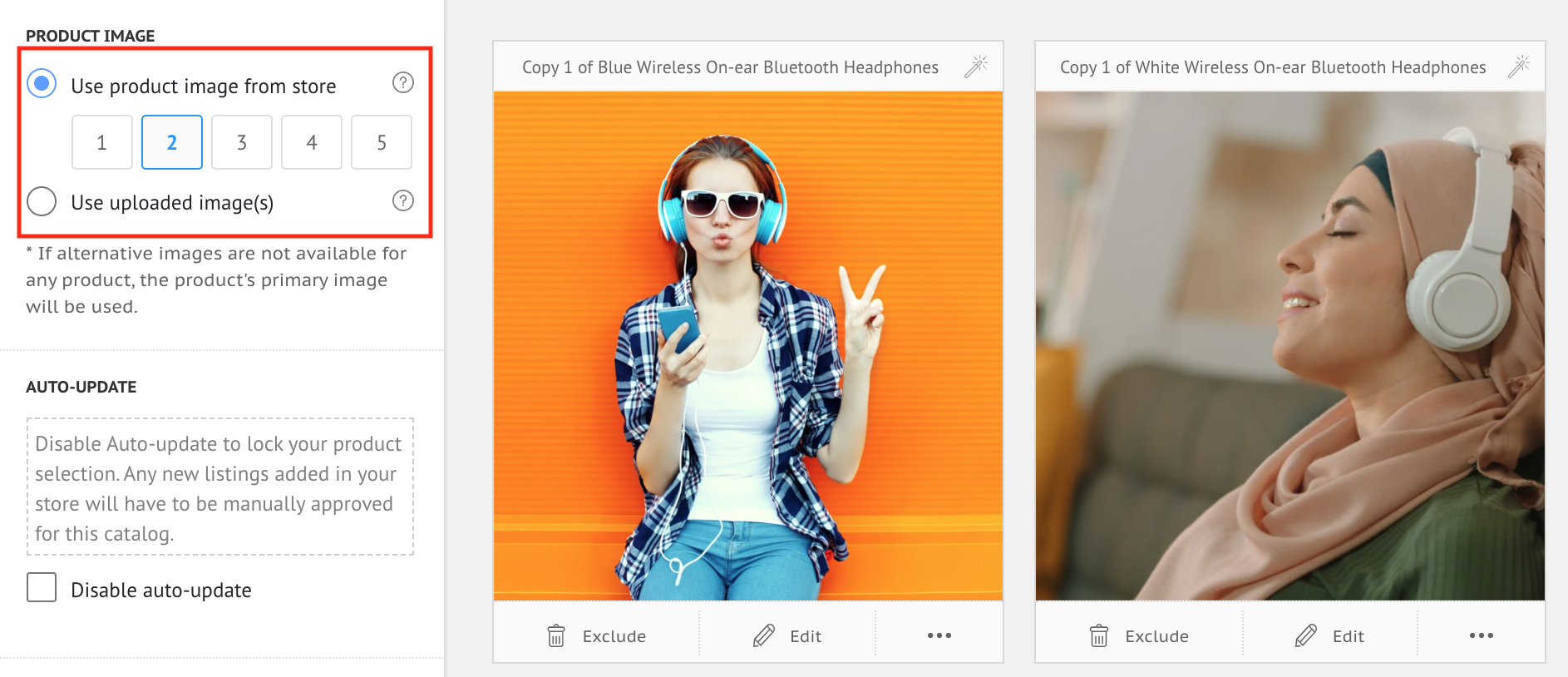
- Select the image position according to your store.
eg. If your lifestyle images are in the second position, select position 2 on Socioh. This change will reflect on all products in your catalog.
NOTE: If you have custom images uploaded to your store, select “Use uploaded image(s)”. Learn how to upload image here.
You can now publish the catalog to use in your ads.
If you face any issues, reach out to us using the help bubble on the bottom right of your screen.
