


1. Click “Next” to select the template.

2. On the next screen, confirm product selection and “Save product selection”.

To remove the backgrounds:
1. Edit your template from the master template section.

2. Select the product image element on the canvas. The left panel will show you product mapping information.

Enable “Use images from transparent background” -> click on “Click to select images for background removal”.
2. Select the images (as credits apply) for background removal by clicking on the products. Use the “Select All” option to remove the backgrounds of all your products (*as credits apply)
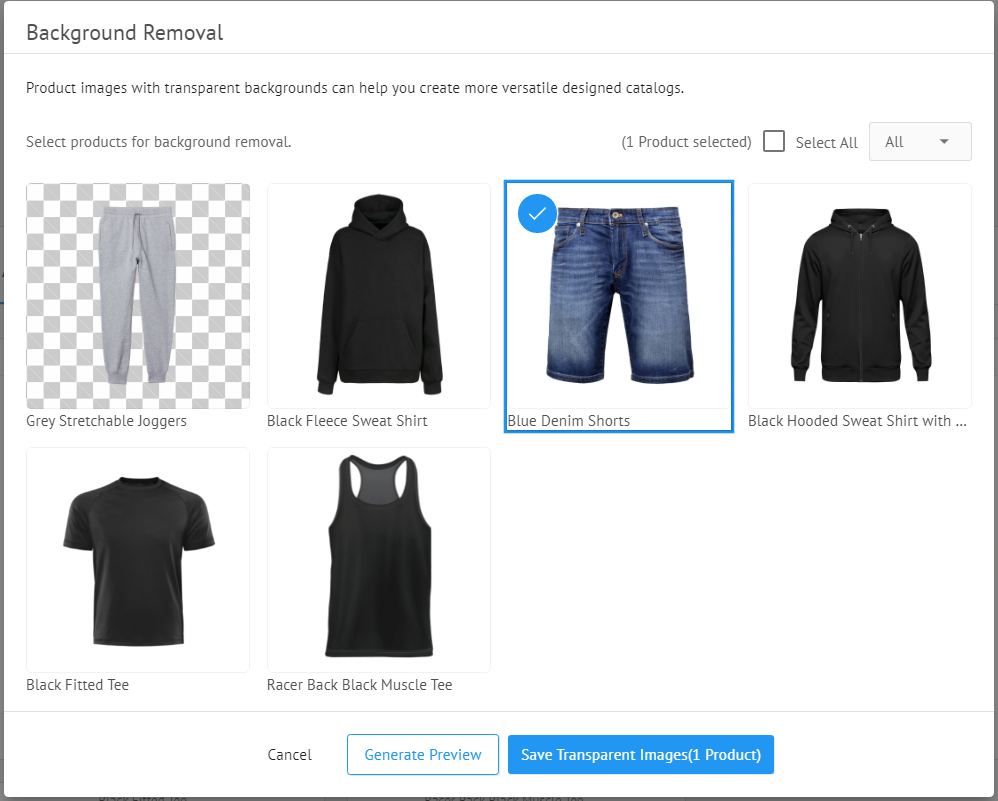
3. Save your image selection and you’re good to do.
NOTE: You won’t need to remove the background for any image more than once. Socioh automatically saves all your background-removed images for future use.
