


If you are just starting out with Facebook ads, the whole setup process can be a bit daunting. On Socioh we try to automate most of the process so you focus on what matters: running ads.
That said, you may sometimes run into a few errors while configuring your account for the first time. Here’s what each of those mean and what you need to do to get them sorted out.
- No Facebook Business Manager account: You will need a Facebook Business Manager account to get started on the Socioh Facebook Ads Toolkit. This will enable us to create catalogs and ads on your behalf. If you see this error simply create your Business Manager account before retrying. Here’s a 2 min video on how to create yours now.
- Not enough data on your pixel: Socioh checks your pixel to see how big an audience your ads are going to have. This error comes up when your audience is too small. If you see this error, we recommend waiting for some time until your pixel has more data before retrying. Depending on how much traffic your store gets, this could be anywhere from a few hours to a week or so.
- Pixel not associated with your Business Manager account: To use a pixel from your personal ad account on Socioh, you will have to associate it with your Business Manager account first. Simply click on the Claim Now link and continue with the setup.
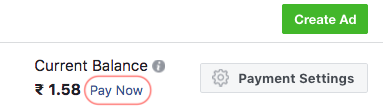
- Inactive ad account: This error will come up if the ad account in question hasn’t been used to run any ads. To continue using the Socioh Facebook Ads Toolkit, simply log in to your Ads Manager account and run an ad. Keep the budget and duration of these as small as possible. The key thing is to ensure that Facebook charges your card, no matter how small the payment is. Once this is done, stop the ad, log back into your Socioh account, navigate to the Advertising Settings tab and click on Resync Business Accounts. Facebook may occasionally delay charging your account. To make payments immediately, navigate to the Billing page on your ad account and click on the Pay Now link on the top of the page.
- No published pages: You’ll need a published page to advertise on Facebook. If you see this error, simply change the visibility status of your page. Click here for step by step instructions.
- Private Instagram account: Instagram doesn’t allow ads on a private account. Toggle the Private Account option off, log back into your Socioh account, navigate to the Advertising Settings tab and click on Resync Business Accounts.
- No Facebook pixel installed: The Facebook Ads Toolkit on Socioh supports both prospecting and retargeting ads. Of these, retargeting ads will not work without a pixel tracking users on your store. If you see this error, please add a pixel to your store and then navigate to the Advertising settings tab on Socioh and click on Resync Business Accounts.
– How to install the Facebook pixel on your Shopify or WooCommerce store.
– How to install the Facebook pixel on your Ecwid store.
– How to install the Facebook pixel on your Etsy store.
Please note that it may take anywhere from a few hours to a week or so after you’ve installed the pixel for you to have sufficient data to advertise.
